> For AI agents: the complete documentation index is available at /llms.txt, the full documentation bundle is available at /llms-full.txt.
# Loaders timeline
## Overview
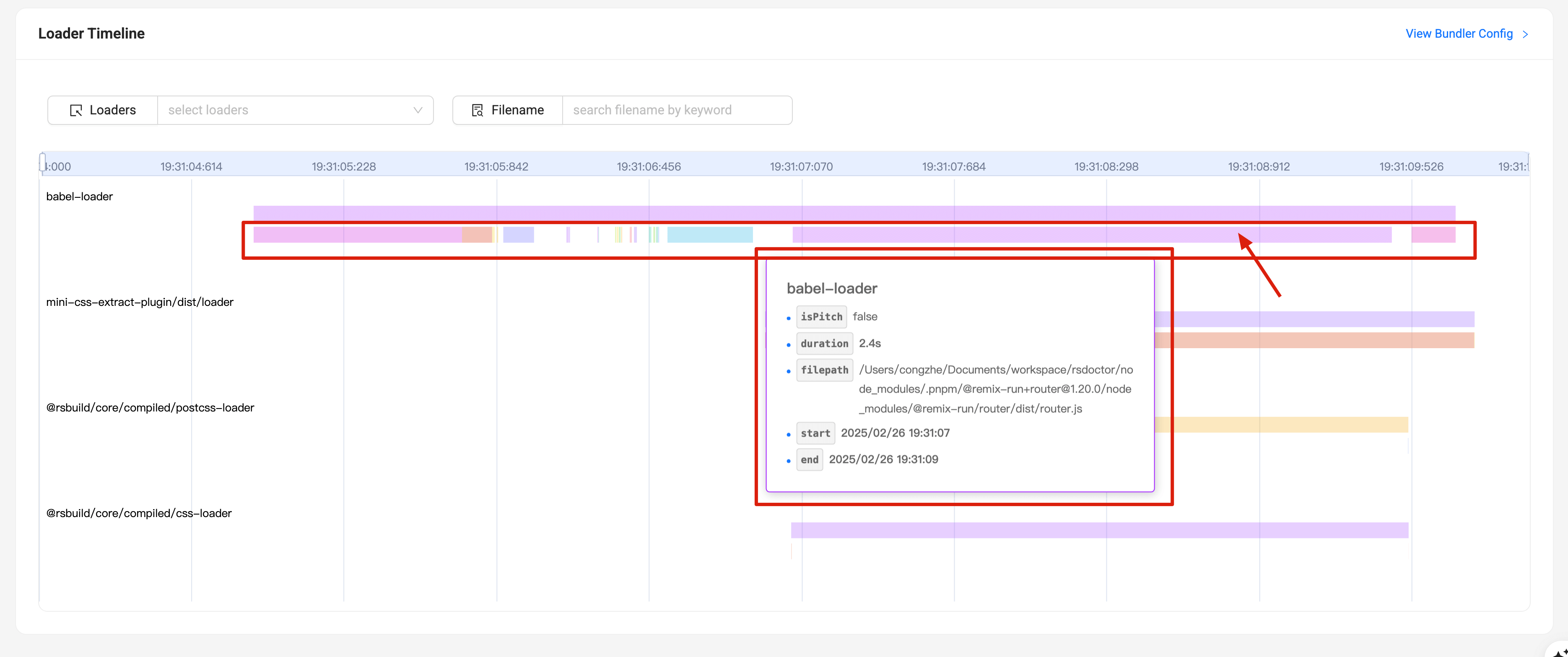
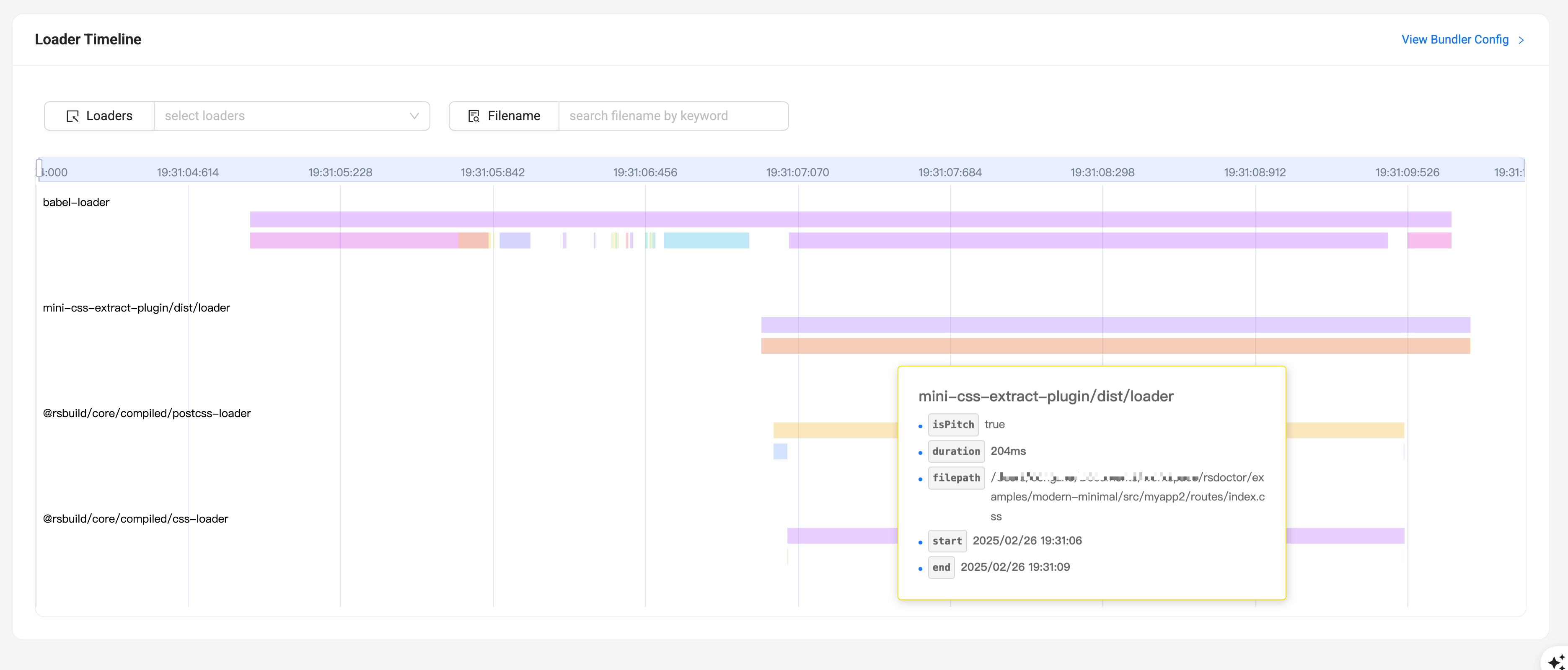
By clicking on the "Compile Analysis" -> "Loader Analysis" option in the navigation bar of **Rsdoctor**, we can see the **execution timeline** of all loaders in the current project. Please note that this page requires the `loader` analysis capability to be enabled in order to display the [features](/config/options/options.md). The content of this page is shown in the following image:
## Glossary
The fields in the chart on the page have the following meanings:
| Term | Description |
| ------------------------------------ | ------------------------------------------------------------------------------------------------------------------------- |
| files | Represents the **total number of files** processed by the loader |
| files(node\_modules) | Represents the number of files processed by the loader within `node_modules` |
| files(outside the cwd) | Represents the number of files processed by the loader outside of the `cwd` |
| duration | Represents the **estimated time** taken by the loader to execute |
| start(min) | Represents the **earliest start time** among all the data of the loader |
| end(max) | Represents the **latest end time** among all the data of the loader |
| isPitch | Represents whether the loader execution is a [pitch](https://webpack.js.org/api/loaders/#pitching-loader) function or not |
| filepath | Represents the **file path** received by the loader |
| start | Represents the **start time** of the loader execution |
| end | Represents the **end time** of the loader execution |
## Usage
In the **Loaders Timeline**, the **left Y-axis** represents the **loader names**, while the **top X-axis** corresponds to **time (hour:minute:second)**. We can use the zoom feature and hover over the chart to view more detailed information about loader invocations.
There are two selector at the top of the page, where you can enter the **Loaders** or **Files** you want to filter, and the timeline chart will be displayed based on the filtered content.

### Viewing overall loader information
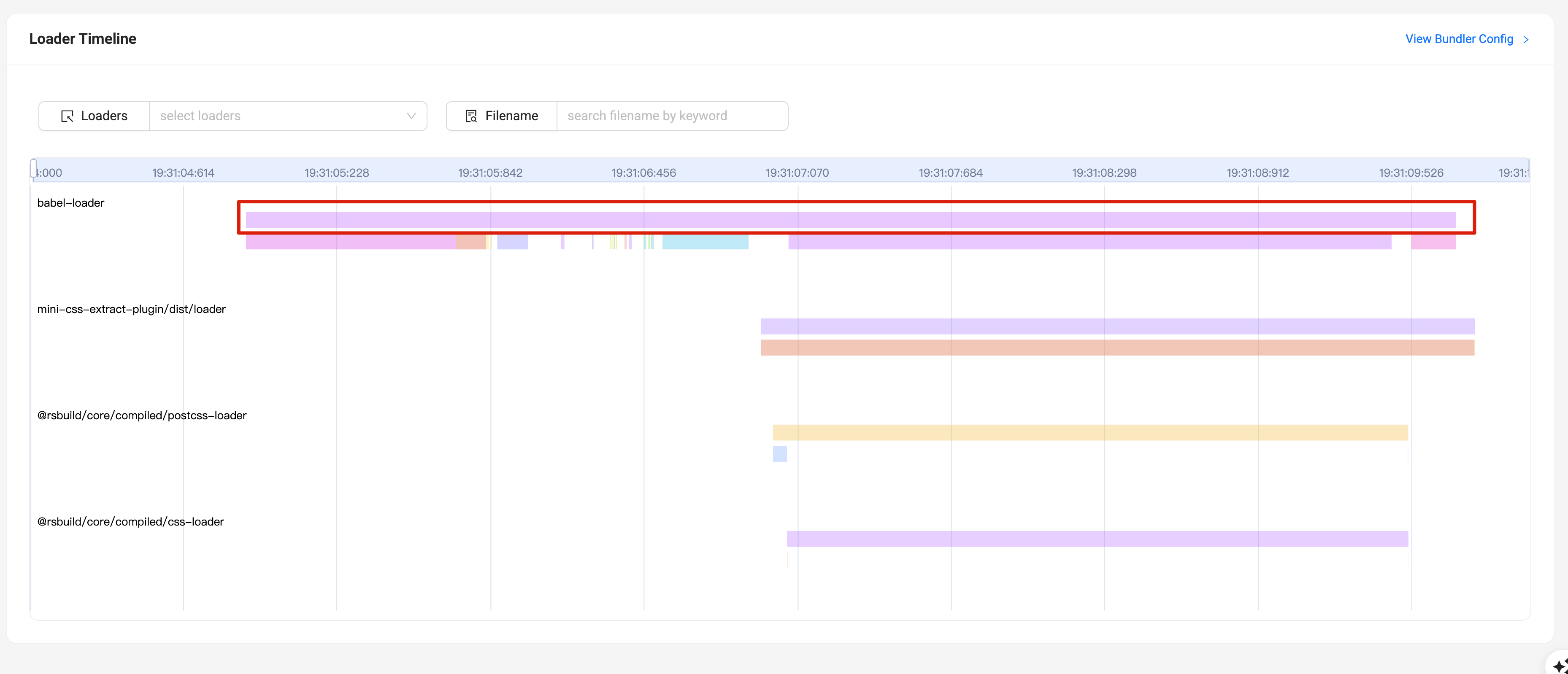
If we want to view the **summary of all data** for a single loader, we can hover over the position shown in the following image:
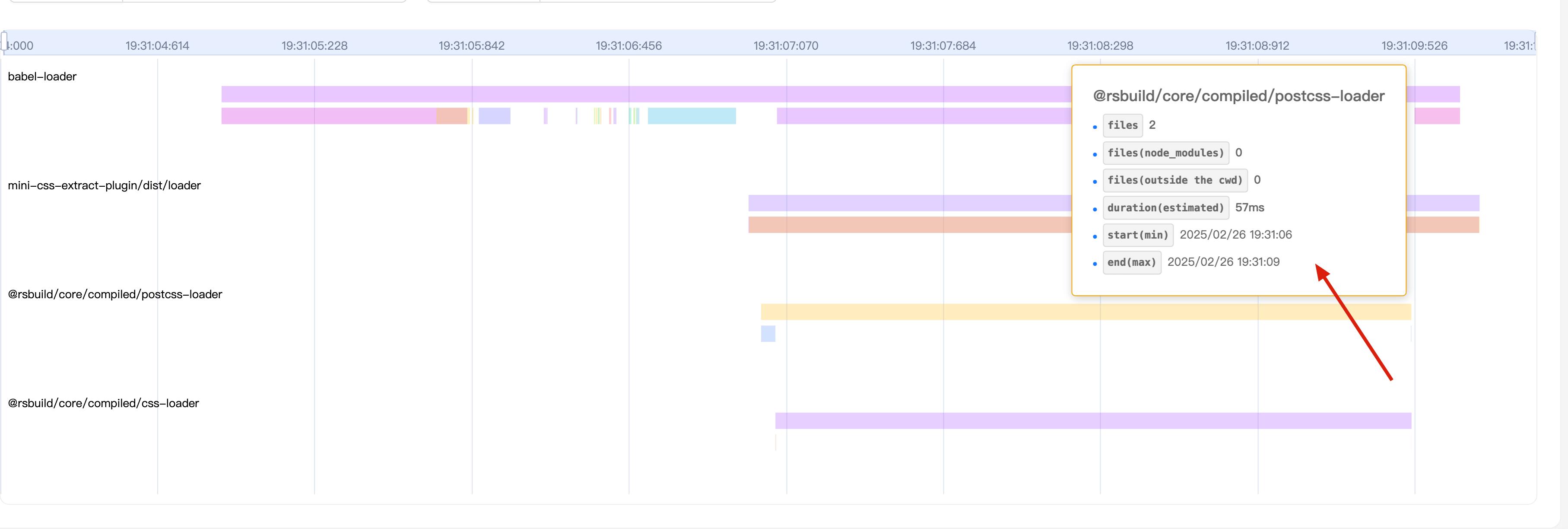
At this point, we can see the **summary of all invocations** within a single loader (refer to the [Glossary](#glossary) for field definitions), as shown in the following image:
### Viewing individual loader invocation information
If we want to view the **information of a single invocation** for a loader, we can hover over any **colored stripe** within the position shown in the following image. At this point, we can see the **information of the current invocation** within a single loader (refer to the [Glossary](#glossary) for field definitions), as shown in the following image: